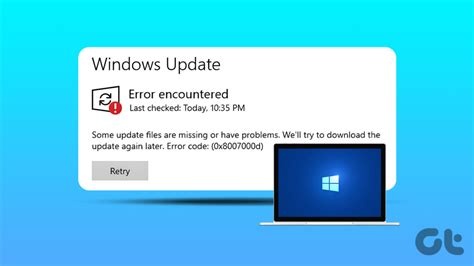
The January 2026 Windows 11 update caused reboot loops, missing Snap Layouts, and shutdown failures for many PCs. You can restore stability without a full reinstall by uninstalling the problematic KB, using Windows Recovery Environment to roll back drivers or disable startup items, and performing an in‑place repair that keeps your files. Follow these three steps to get your system working again.
What Caused the January 2026 Windows 11 Update Failure
Reboot Loop Issue
After installing the January 2026 patch, some devices become trapped in an endless cycle of restarts. The loop prevents users from accessing the desktop or any recovery tools.
Missing Snap Layouts and Widgets
The update unintentionally disables built‑in features such as Snap Layouts and Widgets, leaving the user interface incomplete and reducing productivity.
Shutdown Failure
Another critical bug stops the system from powering off correctly. Machines either hang on the shutdown screen or require a hard power‑off, risking data loss.
Why Fixing This Update Matters
Windows 11 is the default operating system on most new PCs, and the January 2026 patch includes essential security fixes. An unstable update can disrupt home users, enterprises, and developers, eroding confidence in the platform and causing costly downtime.
Three Quick Fixes Before Reinstalling
1. Uninstall the Problematic Update
- Open Settings → Windows Update → Update history and locate the KB entry for the January 2026 update (e.g., KB2026‑xxxx).
- Press Win + I, go to Windows Update → Update history → Uninstall updates.
- Select the January 2026 entry and click Uninstall. This often restores normal boot behavior and re‑enables missing features.
2. Use Windows Recovery Environment to Clear Drivers or Startup Items
- Force a shutdown by holding the power button for 10 seconds. Repeat twice; on the third start‑up Windows will launch the Windows Recovery Environment (WinRE).
- Navigate to Troubleshoot → Advanced options → Startup Settings and enable Safe Mode.
- In Safe Mode, open Device Manager to roll back recent driver updates that may have been installed with the patch.
- Use Task Manager or msconfig to disable suspicious startup items that could be causing the boot deadlock.
3. Perform an In‑Place Repair or Reset While Keeping Files
- Download the latest Windows 11 ISO from Microsoft’s official site onto a USB drive.
- If you can reach the desktop, run setup.exe and choose Upgrade this PC now, selecting the option to keep personal files and apps.
- If the desktop is inaccessible, go to Settings → System → Recovery → Reset this PC. Choose the option to keep your files; this reinstalls Windows while preserving personal data, though most apps will be removed.
What to Expect from Microsoft’s Emergency Patch
The emergency patch released the day after the outage specifically addresses the shutdown failure. Early telemetry shows normal power‑off behavior for most devices. Microsoft has not confirmed whether the patch also resolves the reboot loop or missing‑feature issues, so applying the patch followed by the three‑step troubleshooting plan is recommended.
Best Practices for Future Windows 11 Updates
- Regularly review update history and create system restore points before installing major patches.
- Back up critical data to an external drive or cloud service.
- For enterprises, stage updates on a small pilot group to catch regressions before full deployment.
- Keep drivers up to date and verify compatibility with the latest Windows 11 builds.