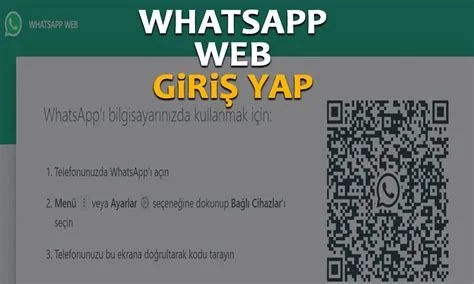
WhatsApp Web experienced a sudden outage that left millions of users staring at a blank QR‑code screen, preventing desktop login and message sending. The issue stemmed from a server‑side glitch that halted token generation. You can restore access quickly by clearing your browser data, restarting devices, and ensuring both the app and browser are up to date.
What caused the QR login to stop working?
The web client relies on a token generated by WhatsApp’s servers. When that service hiccups, the page loads but the script never receives the token, so the QR code never appears. This type of backend interruption can affect a large user base at once, turning a routine login into a dead end.
How WhatsApp Web is supposed to work
When everything runs smoothly, the process looks like this:
- Open web.whatsapp.com in a modern browser.
- A QR code shows up on the screen.
- On your phone, tap Linked Devices and select Link a Device.
- Scan the QR code with your phone’s camera.
- The web client mirrors your phone’s chats, letting you type and share files from your computer.
Quick checklist to restore QR login
If you’re still seeing a blank screen, follow these steps:
- Clear browser cache and cookies. Old data can block token retrieval.
- Restart both the browser and your phone. A fresh session forces a new handshake with the server.
- Update the WhatsApp app. New versions contain the latest encryption keys needed for the web protocol.
- Disable VPNs or proxy extensions. They may hide the IP address WhatsApp uses for validation.
Most users report that applying this checklist brings the QR code back within minutes.
Why the outage matters for you
WhatsApp Web is a core tool for professionals who need to juggle chats while working on a laptop. When the QR login stalls, you lose a fast‑typing interface and may be forced to rely on mobile‑only messaging—a setback if you’re on a limited data plan or need to share files quickly.
What to do if the problem returns
Keep your app updated and maintain a clean browser environment. If the QR code still won’t appear after trying the checklist, use the Help section in the mobile app to report the issue directly to WhatsApp support.
Bottom line
The brief server glitch that blanked the QR code highlighted how a single point of failure can disrupt millions of desktop sessions. By clearing cache, restarting devices, and staying current with updates, you can minimize downtime and get back to chatting without missing a beat.