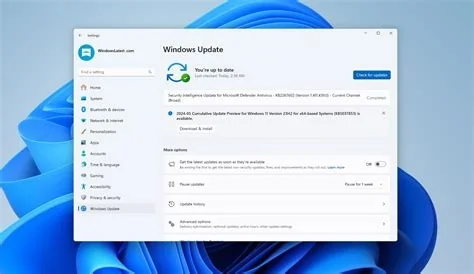
KB5078127 is Microsoft’s emergency update that restores Outlook stability on Windows 11 by fixing POP‑account and PST‑file errors introduced in the recent January patch. Installing this update and upgrading to Windows 11 can be done through Windows Update or the Windows 11 Installation Assistant, ensuring a smooth transition and uninterrupted email access for both home and business users.
How to Upgrade from Windows 10 to Windows 11
Microsoft provides several methods to move from Windows 10 to Windows 11, each designed to keep your data safe while delivering the latest security and performance improvements.
Upgrade via Windows Update
Open Start → Settings → Update & Security → Windows Update, click Check for updates, and select the Upgrade to Windows 11 option when it appears. The system will download and install the new OS automatically.
Upgrade with Windows 11 Installation Assistant
Download the Windows 11 Installation Assistant from Microsoft’s official site, run the tool, and follow the on‑screen prompts. The assistant verifies hardware compatibility, creates a backup, and performs the upgrade without data loss.
Clean Installation with a Purchased License
If you have a retail or digital license for Windows 11, you can perform a clean install. Boot from the installation media, enter your product key when prompted, and follow the installation wizard to set up a fresh system.
What Caused Outlook Crashes After the January Patch
The January security update modified core components that handle cloud synchronization and mail delivery. For users of classic Outlook with POP accounts and local PST files, these changes prevented mailbox access, caused the client to freeze, and generated errors when sending or receiving messages.
KB5078127 Emergency Patch Overview
KB5078127 is an out‑of‑band update released to address the Outlook instability. It is delivered through Windows Update and installs automatically on systems that detect the related vulnerability.
Key Features of KB5078127
- Restores proper functionality for POP‑based Outlook accounts.
- Fixes PST file access errors and prevents client freezes.
- Improves overall stability of Outlook after the January update.
How to Install KB5078127
- Open Start → Settings → Update & Security → Windows Update.
- Click Check for updates. If KB5078127 appears, select it.
- Choose Download and install.
- Restart the computer when the installation completes.
If the update does not appear automatically, search for “KB5078127” in the Microsoft Update Catalog and install it manually.
Why This Patch Matters for Business Users
Outlook remains a primary email client in many enterprises, especially where PST files are used for local storage. Unresolved crashes can lead to lost access to critical communications, workflow delays, and potential compliance issues. Deploying KB5078127 quickly restores reliable email functionality and protects business continuity.
Next Steps and Ongoing Maintenance
Microsoft plans to release additional out‑of‑band updates if new issues arise. Keep Windows Update enabled, enable automatic installation of critical patches, and regularly verify that the latest updates are applied to all workstations.
Summary
- KB5078127 resolves Outlook crashes caused by the January security patch.
- Upgrade to Windows 11 via Windows Update or the Installation Assistant for enhanced security and performance.
- Promptly install the emergency patch to maintain email access and avoid downtime.